US English (US)
ES Spanish
MX Spanish (Mexico)

Contact Us

If you still have questions or prefer to get help directly from an agent, please submit a request.
We’ll get back to you as soon as possible.

Please fill out the contact form below and we will reply as soon as possible.

  • Contact Us
English (US)
US English (US)
ES Spanish
MX Spanish (Mexico)
  • Home
  • Care Providers
  • Providers: Using CareApp

Care Provider: How to Deactivate a Member’s Account in CareApp

Written by Georgia Radcliffe

Updated at February 9th, 2026

Contact Us

If you still have questions or prefer to get help directly from an agent, please submit a request.
We’ll get back to you as soon as possible.

Please fill out the contact form below and we will reply as soon as possible.

  • Care Providers
    Providers: Getting Started Providers: Building your community Providers: Using CareApp Providers: Insights
  • Family & Friends
    Family: Getting Started Family: Building your community Family: Using CareApp
  • Care Recipients
  • Technical information
  • Resources
  • Community
+ More

If you are a Provider Administrator or Site Coordinator in CareApp, you can deactivate a member’s account when they are no longer part of your organisation or no longer need access.

Delete

What happens when you deactivate an account?

Deactivated members can no longer log in or access any CareApp features until their account is reactivated. 

Deactivate a Member

Mobile

  1. Open the CareApp mobile app.
  2. Tap the ☰ menu (three lines) in the top left corner.
  3. Select Members from the menu.
  4. Find and tap the name of the member you want to deactivate. 
  5. Tap the Account enabled toggle so it turns grey — this means the account is now deactivated.


Delete

You can reactivate the account at any time by returning to this screen and switching the toggle back on.


Delete

Web

  1. Log in to CareApp Web.

  2. Click Members in the left‑hand menu.

  3. Use the search bar or scroll the list to find the member you want to deactivate.

  4. Click the member’s name to open their profile.

  5. Toggle Account enabled so it turns grey — this indicates the account is deactivated.

  6. Click Save to confirm the change.

Delete


Need to Reactivate Later?

If you deactivate someone by mistake or they return to your organisation, you can easily turn their account back on by switching the Account enabled toggle back to teal (on).

Care Provider: Re-activate a member's account

If you are an Administrator on CareApp you can reactivate a member's account.

When a member's account is deactivated they are no longer able to login to their account or have access to the media or data on their account. 

Follow the steps below to reactivate Team Member, Coordinator, or family accounts.

Mobile

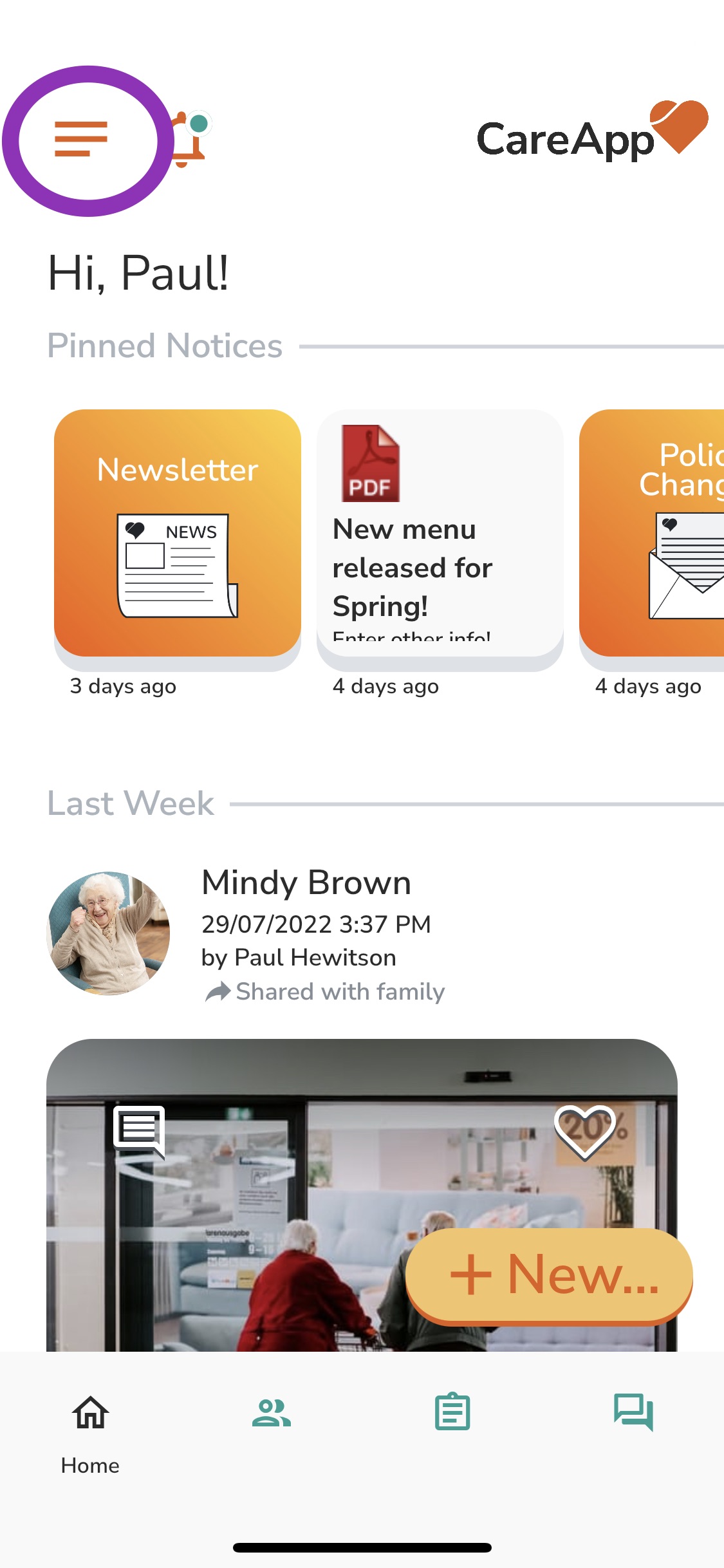
  1. Tap on the side menu represented by 3 lines at the top left side of the screen.
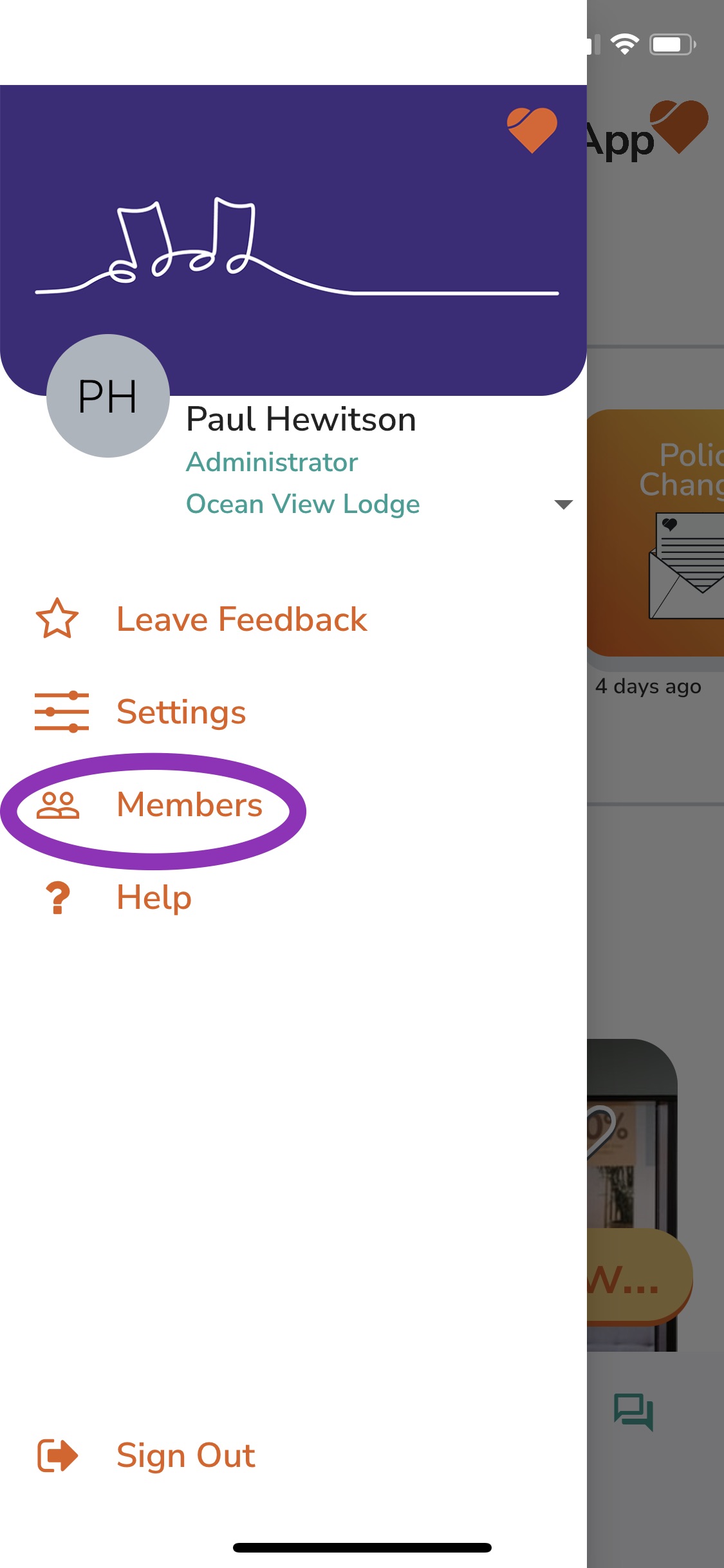
  2. Tap on 'Members' from the menu.
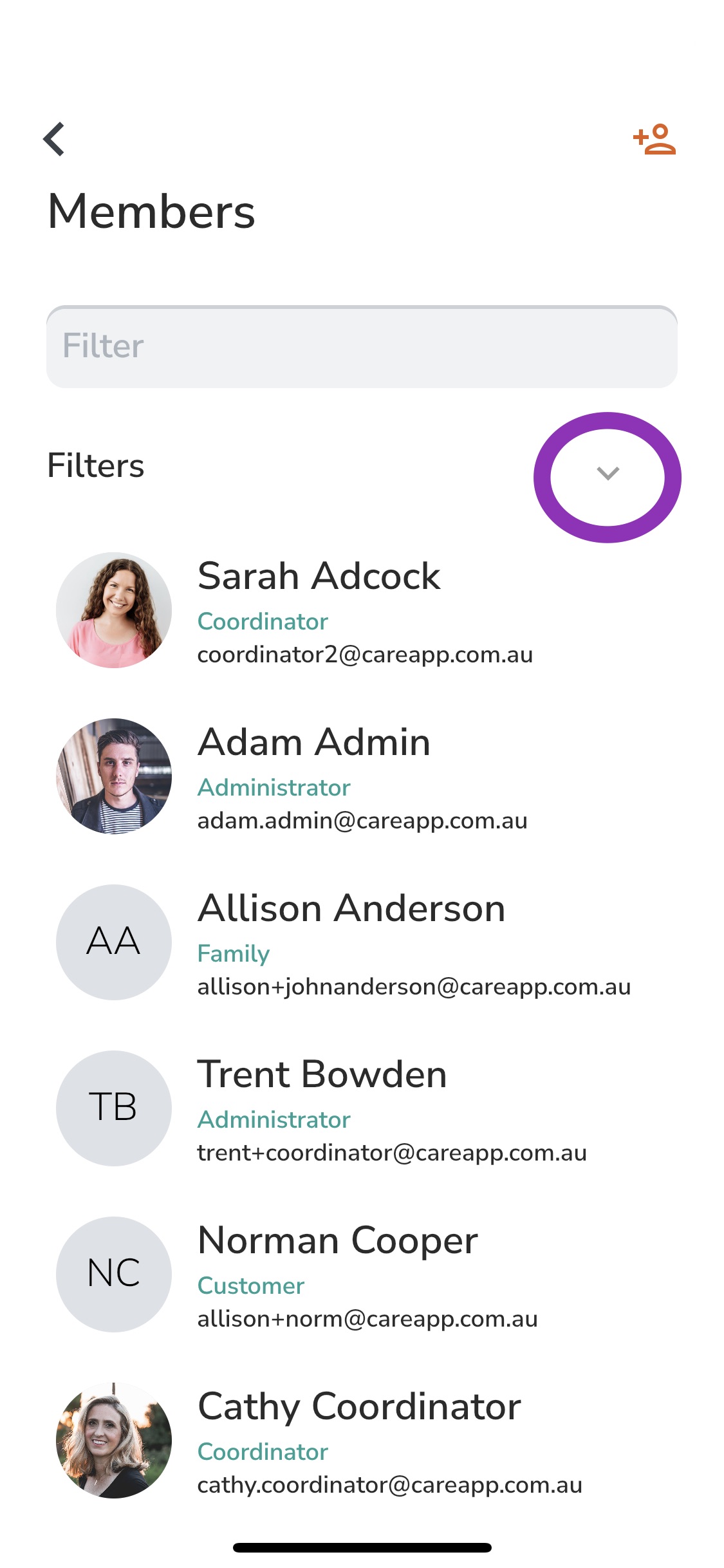
  3. Tap on the down arrow under the 'Filter' search bar.
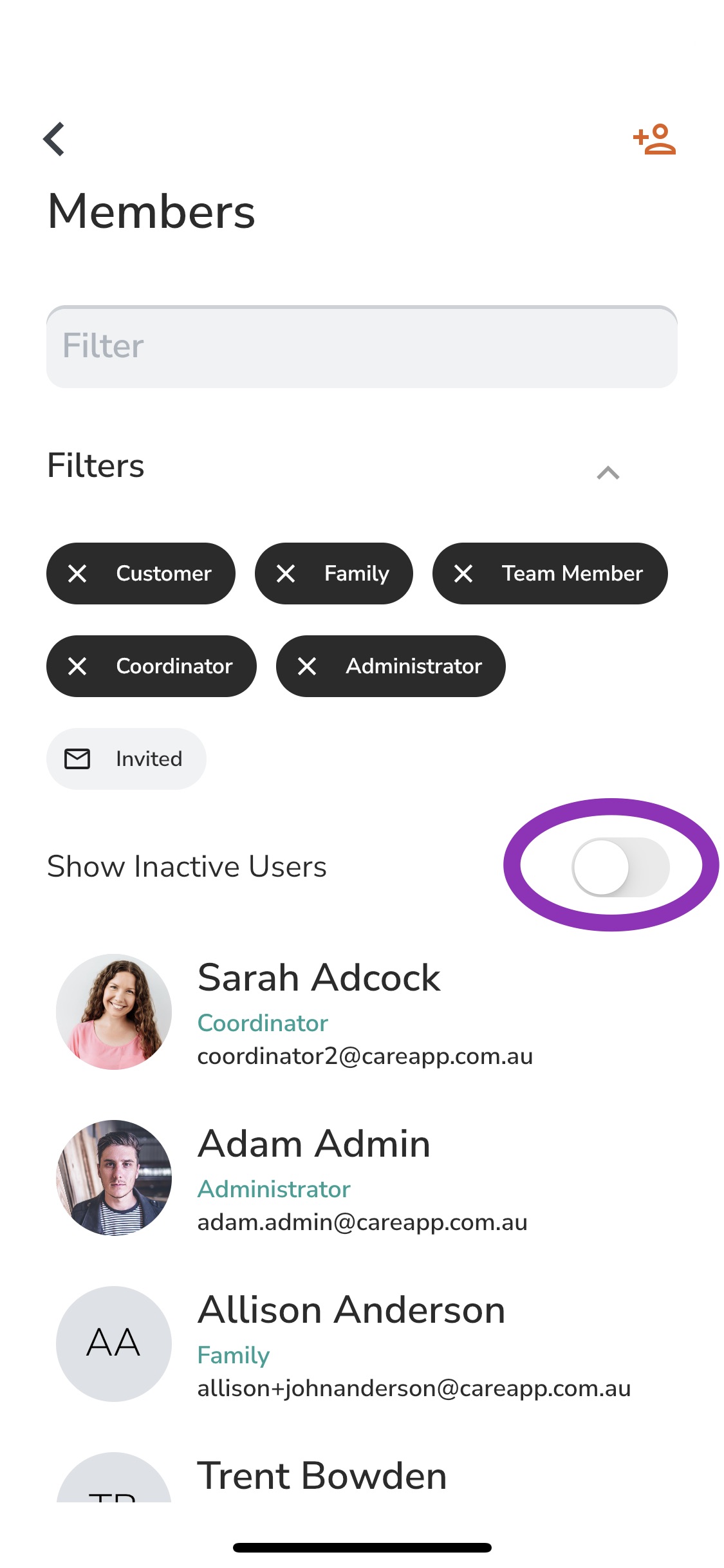
  4. Tap on the switch that says 'Show Inactive Users'.
  5. Now search for the member you wish to activate by scrolling down the list or searching for their name in the 'Filter' search bar.
  6. Once you have found the member tap into their name to bring up their profile.
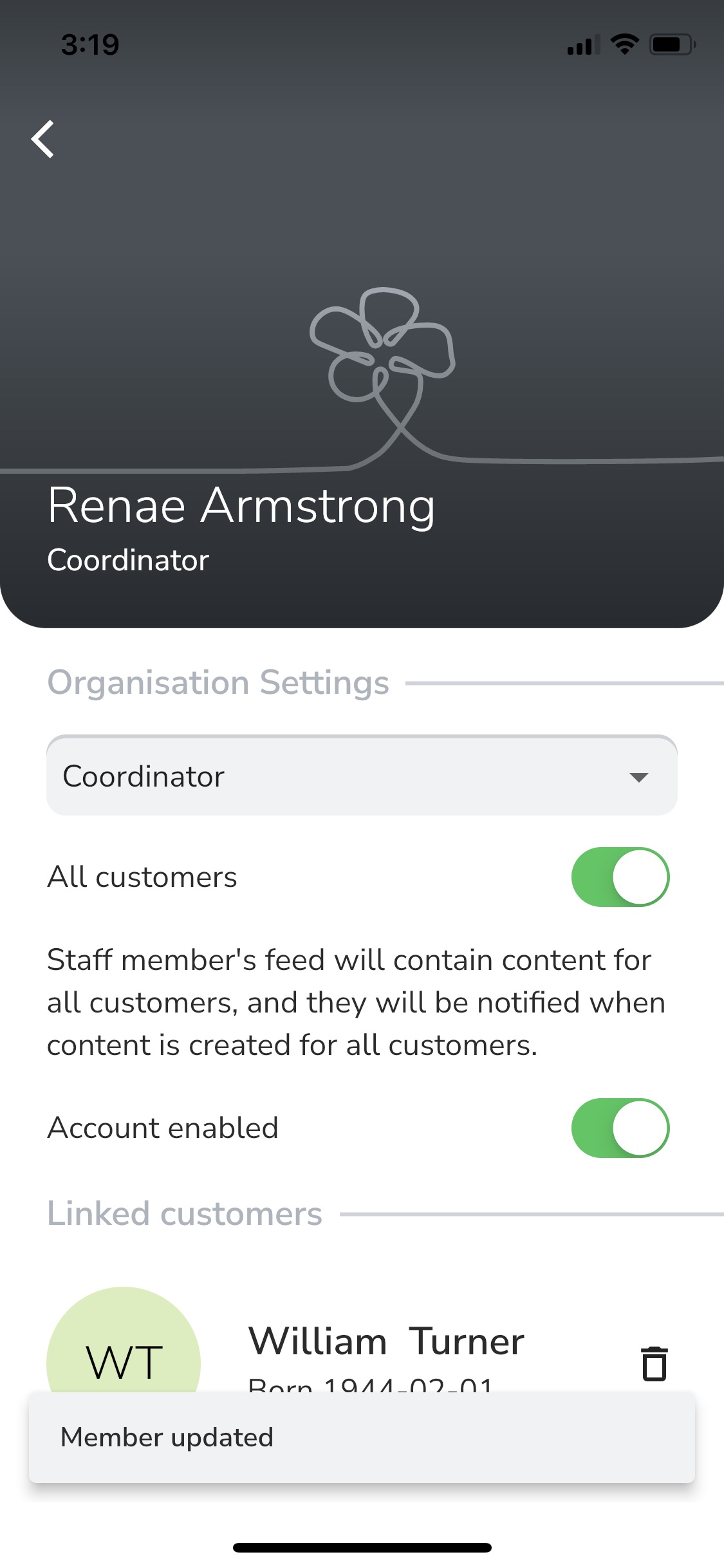
  7. Tap on the 'Account enabled' switch. Teal means the account is enabled and grey means the account is disabled. This will be automatically saved.
See images below for further guidance:

Image 1.


Image 2.


Image 3.


Image 4.


Image 5.
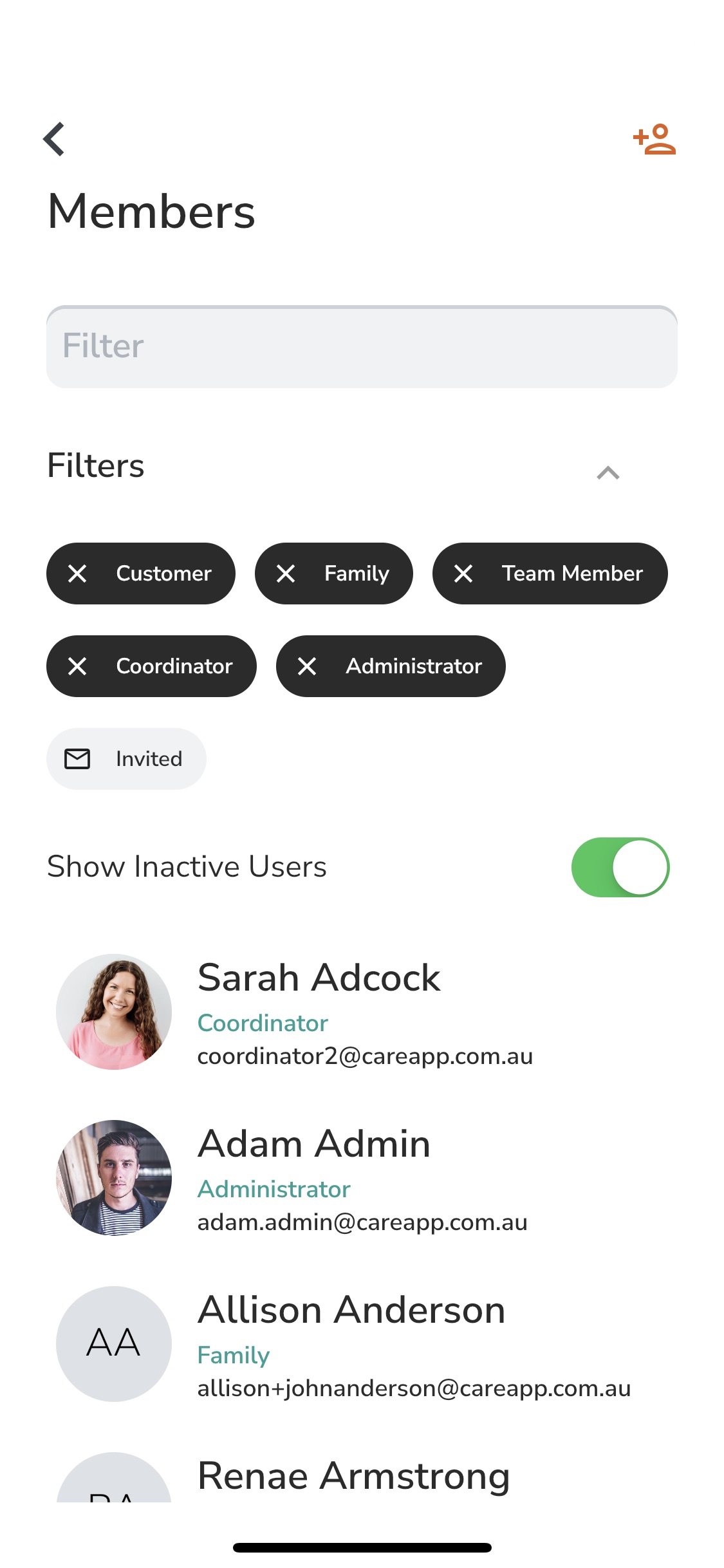

Image 6.
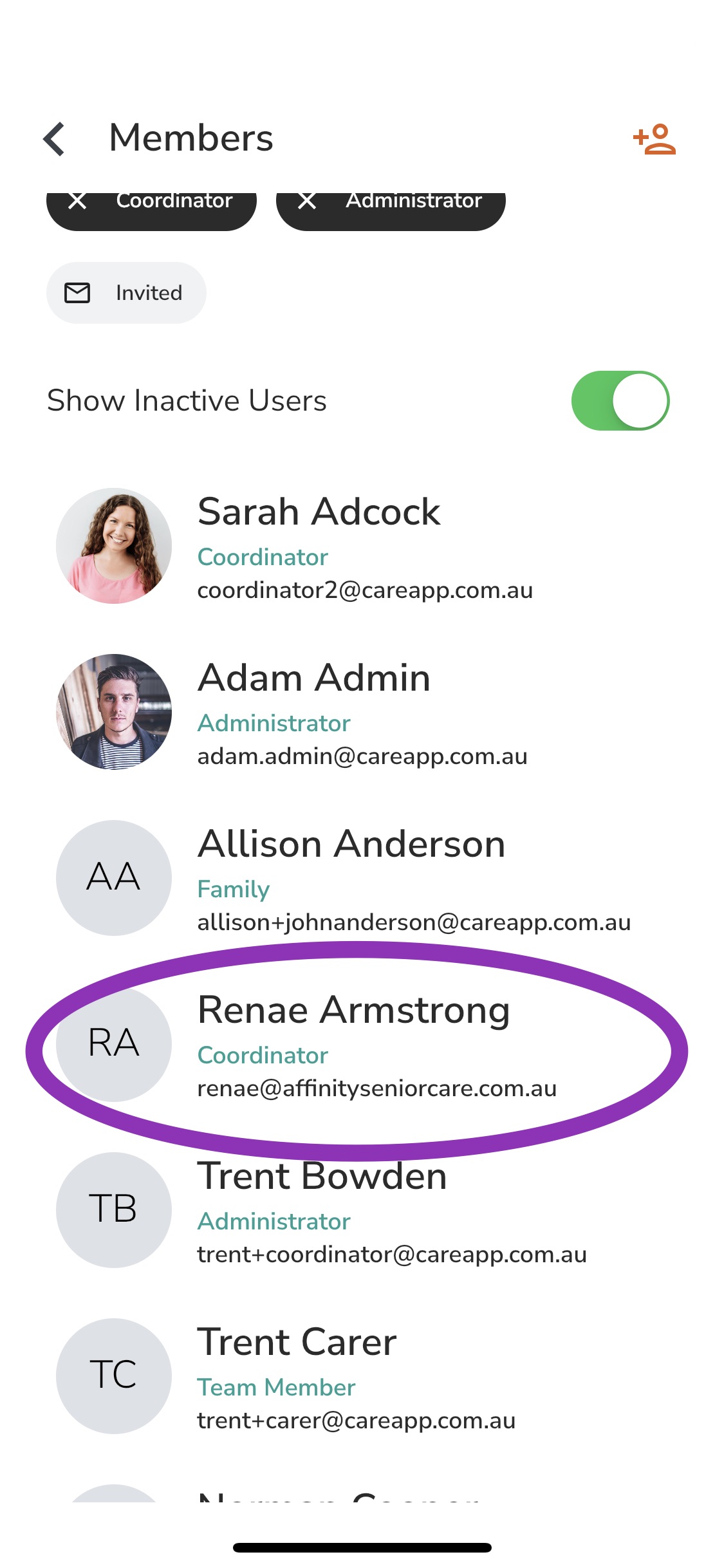

Image 7.
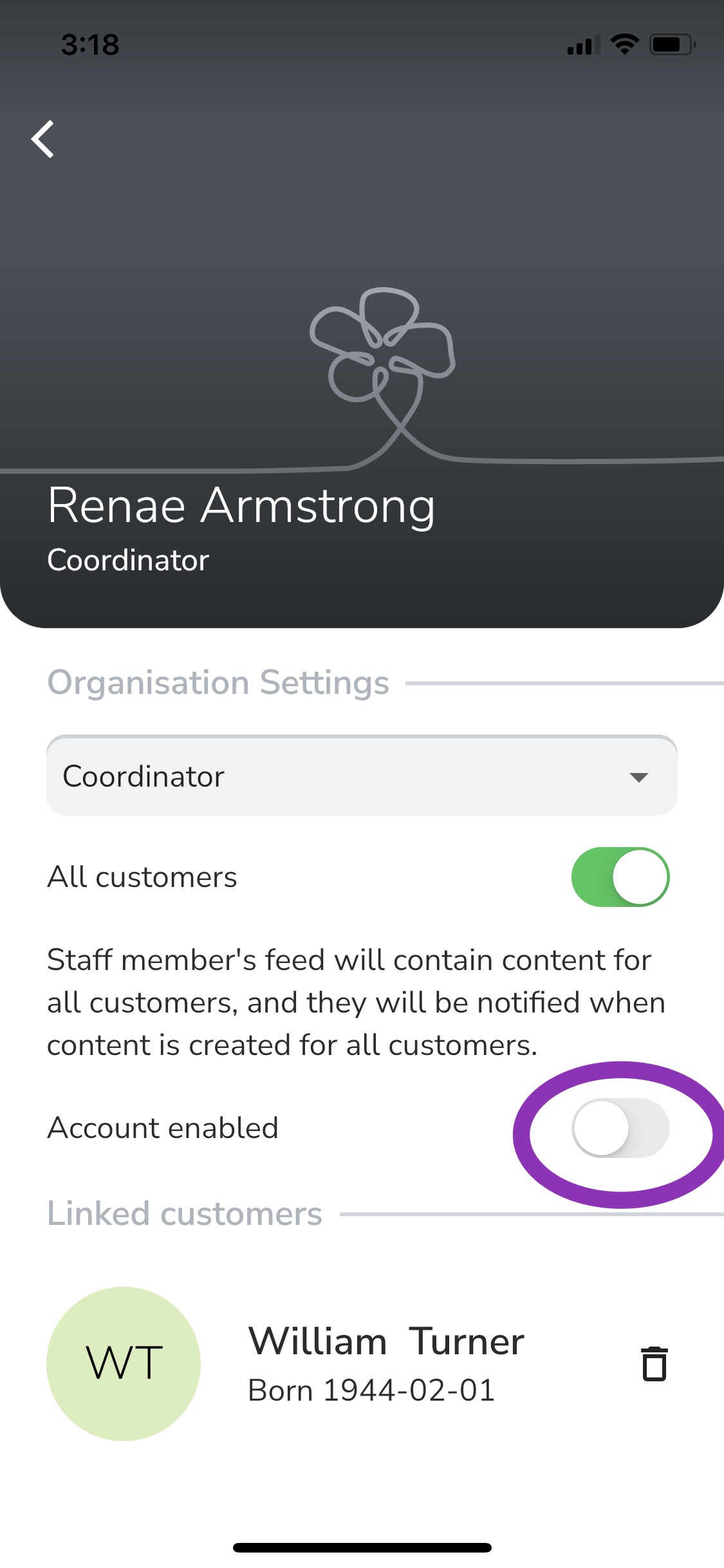

Image 8.
Delete

Web

  1. Click on the 'Members' tab in the left side menu.
  2. Click on the 'Inactive' tab. Here you will see all of the inactive member accounts on your CareApp.
  3. Find the member in the list that you would like to reactivate or enable the account for. Do this by scrolling down the list or searching for their name in the 'Filter' search bar.
  4. Click into the member's name to bring up their profile.
  5. Once in the profile of the member click on the 'Account enabled' switch. Grey means disabled and teal means enabled.
  6. Now click 'Save'.
This member will now be enabled.
Delete


Delete


user disable

Was this article helpful?

Yes
No
Give feedback about this article

Related Articles

  • Care Provider: How to Invite Family Members
  • Care Provider: Add Members to an existing Message group
  • Care Provider: Re-activate a member's account
  • Care Provider: Create a Video Chat
  • Care Provider: Archive Customer and Send Slideshow
Suite 7
Stone & Chalk
at Lot Fourteen
North Terrace
Adelaide SA 5000
Linkedin Instagram Facebook
  • Join CareApp
  • Nominate your care provider
  • Resources
  • Welcome
  • Meals on Wheels
  • Integrations
Menu
  • Join CareApp
  • Nominate your care provider
  • Resources
  • Welcome
  • Meals on Wheels
  • Integrations
  • Articles
  • Media Assets
  • Testimonials
  • Team
  • Jobs
Menu
  • Articles
  • Media Assets
  • Testimonials
  • Team
  • Jobs
  • Product Updates
  • Status
  • Contact Us
  • Copyright
  • Privacy Policy
  • Terms of Service
Menu
  • Product Updates
  • Status
  • Contact Us
  • Copyright
  • Privacy Policy
  • Terms of Service

Knowledge Base Software powered by Helpjuice

Definition by Author

0
0
Expand