
Welcome to CareApp!
We’re excited to have you join the CareApp community! Here’s a simple step-by-step guide to get started, log in, and keep up with updates about your loved one.
1. Create Your Account
Need help accepting your CareApp invitation?
Follow the steps below to create your account and get connected.
Not been invited yet? Check out our guide on how to get an account.
Steps to Accept Your Invitation
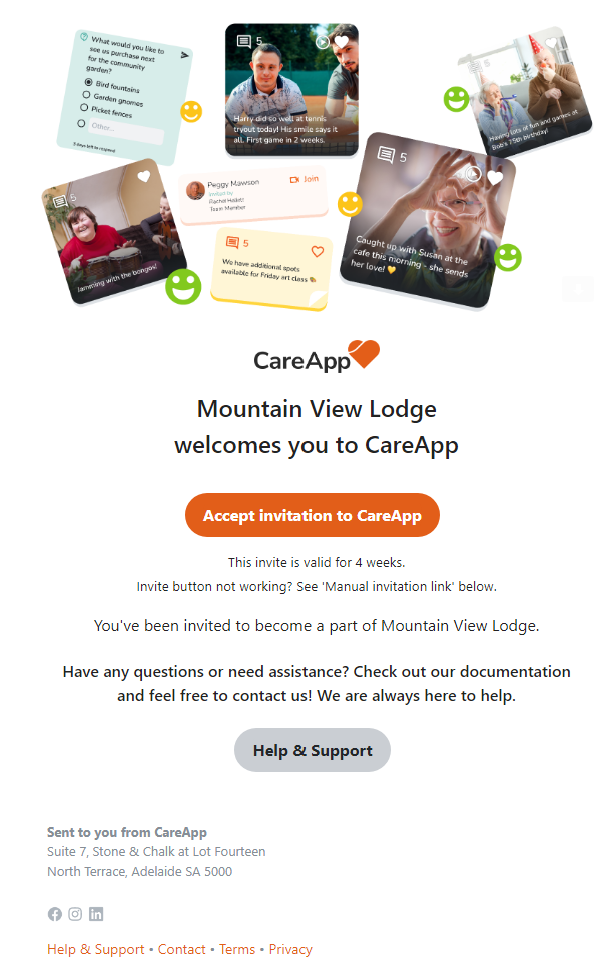
1. Find your invitation
- Check your email (including spam) for an invitation from CareApp hello@careapp.com.au.
2. Accept the Invitation
- Click the “Accept invitation to CareApp” button in the email.
3. Create or connect your account
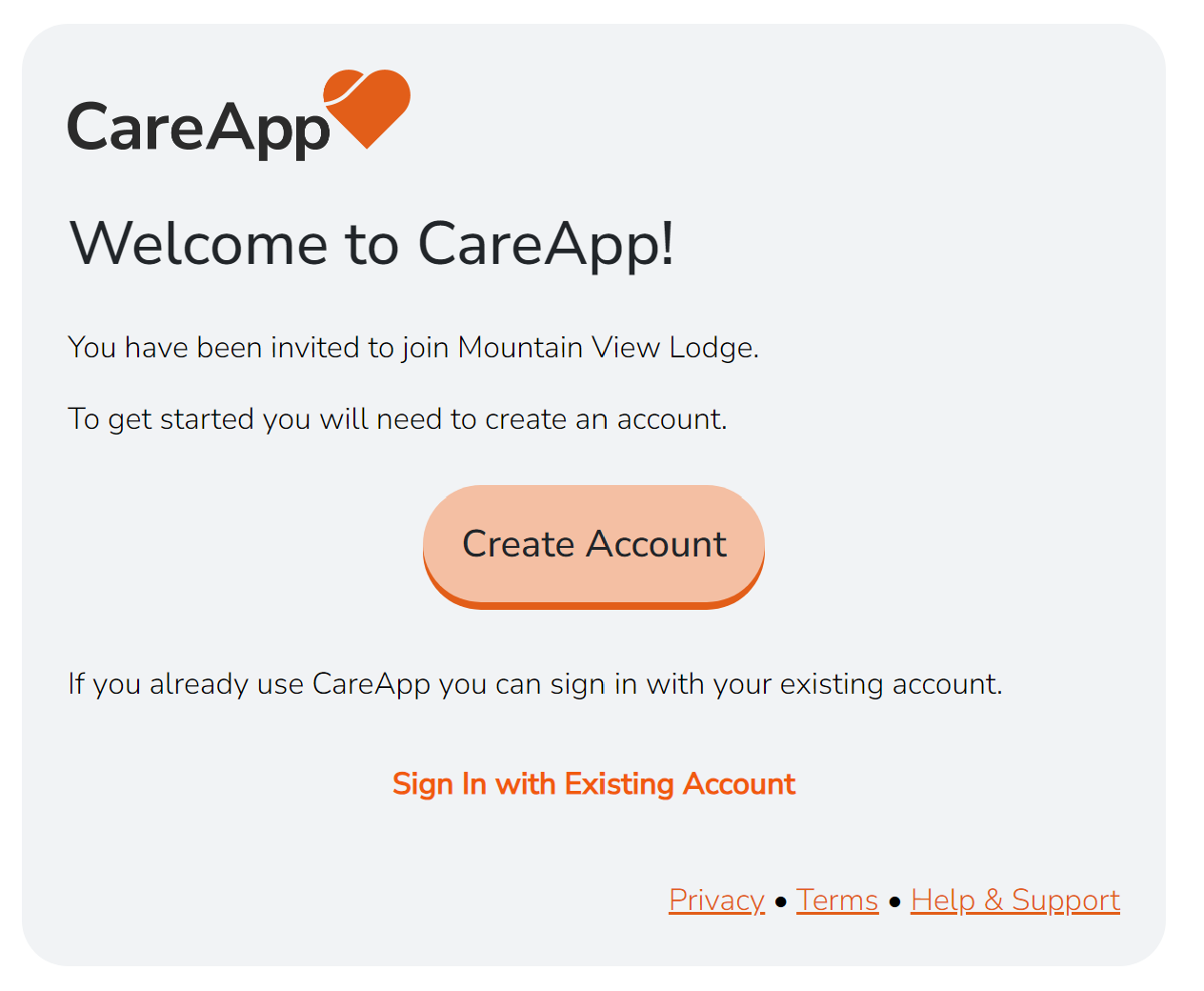
- New to CareApp? Click “Create Account”.
- Already have an account? Click “Sign in with Existing Account” to connect this invitation.
4. Set your password
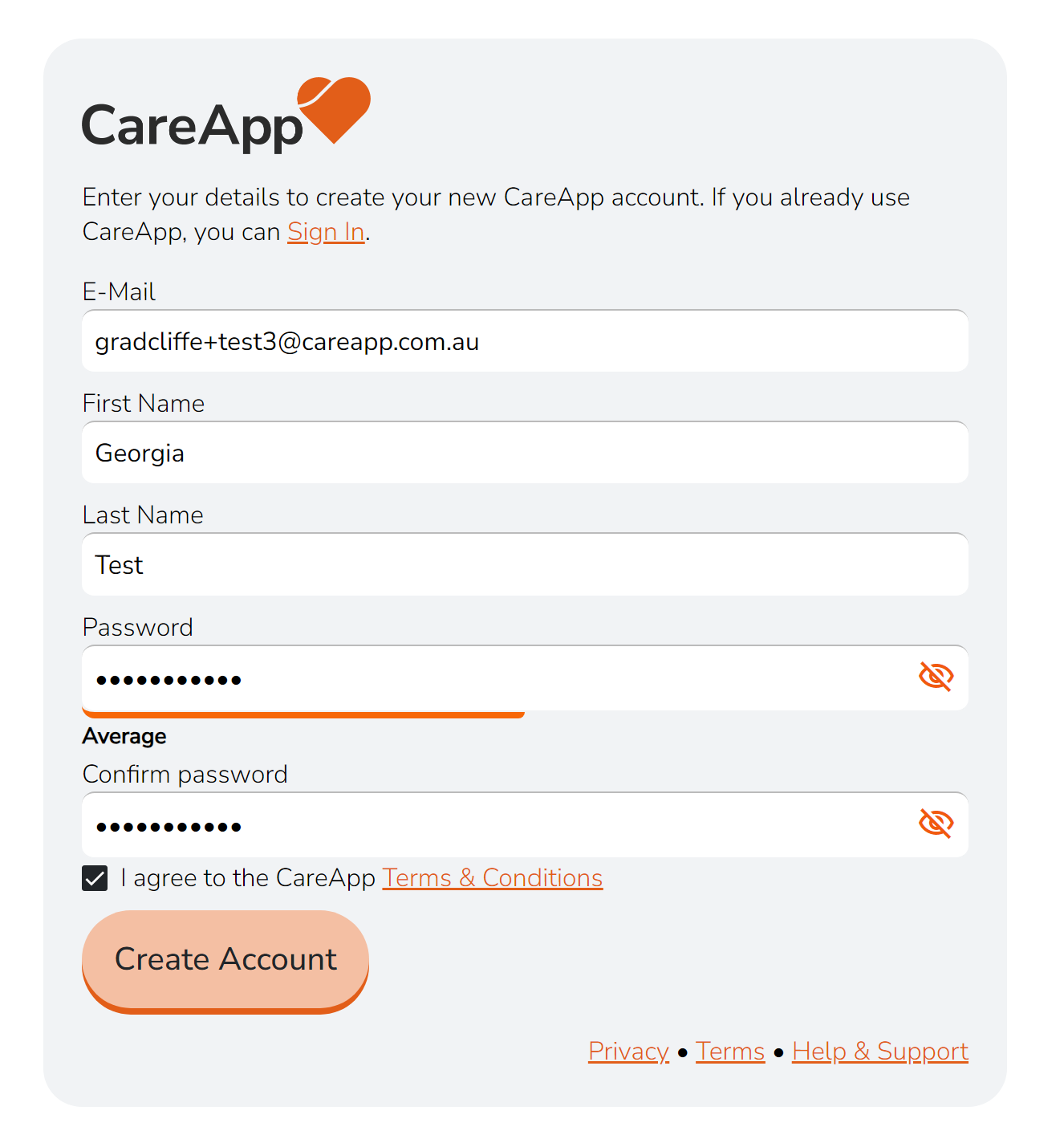
- Enter your First and Last Name and create a password.
- Type your password twice to confirm.
5. Complete signup
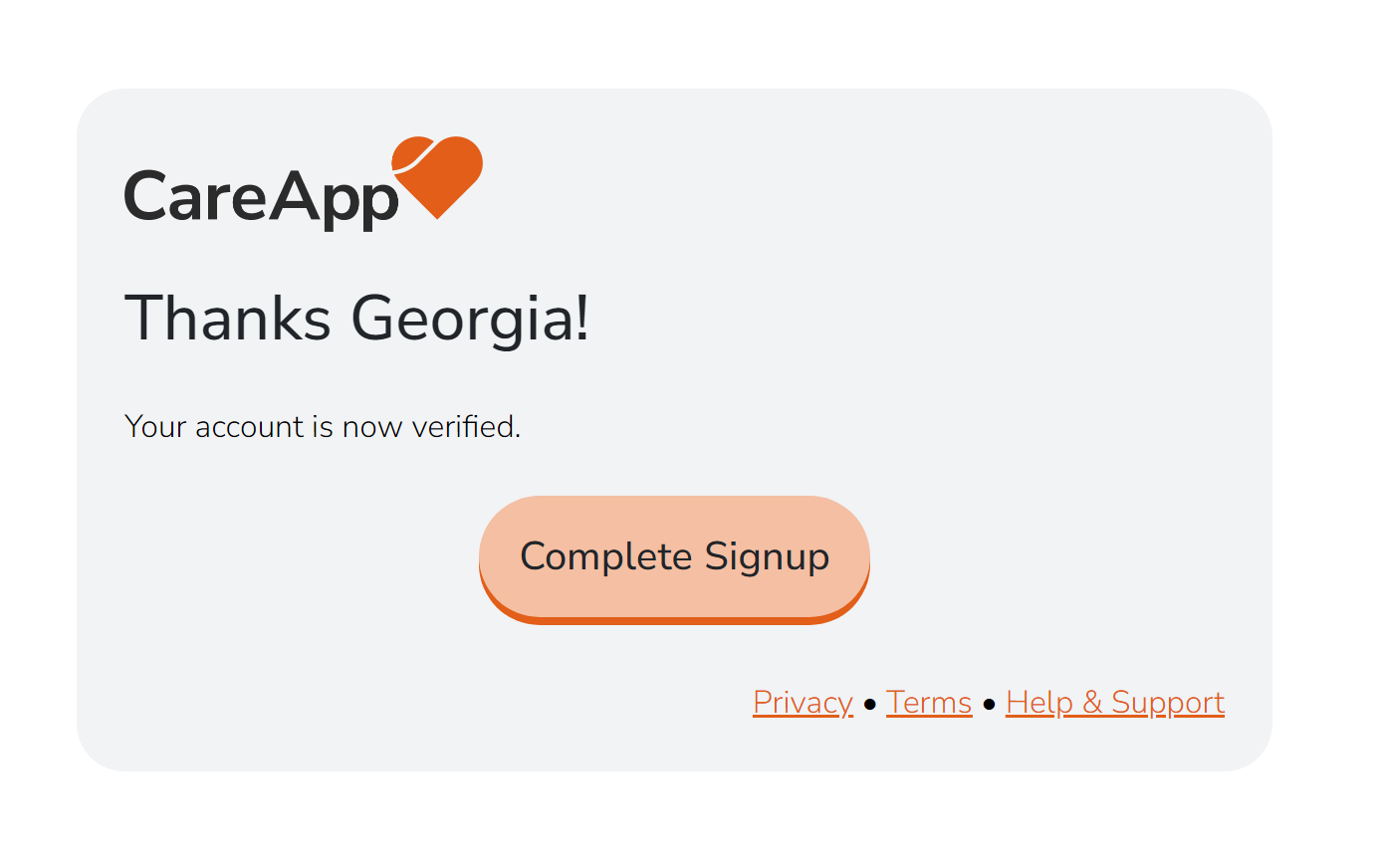
- Click “Complete Signup” to activate your account.
Prefer a full video guide to follow along to?
Check out our step-by-step video guide to learn how to accept your invitation, create your password, log in, download the app, and get started with CareApp!
Prefer a full video guide to follow along to?
Check out our step-by-step video guide to learn how to accept your invitation, create your password, log in, download the app, and get started with CareApp!
Delete
2. Log in to CareApp
How Do I Log Into My CareApp Account?
Logging in is quick and easy — you’ll just need:
An active CareApp account
A smart device (phone, tablet, iPad, etc) or a laptop/computer with a web browser
Don’t have an account yet? Request an invitation to join CareApp
Mobile
Logging In on Mobile
Download CareApp from the App Store or Google Play.
Open the CareApp app.
Enter your email address in the top box.

-
Enter your password in the bottom box.
Tip: Tap the 👁️ icon to view what you're typing.
Press ‘Login’.
If your details are correct, you’ll land straight on your home screen!

Web
Logging In on Web
Head to: https://app.careapp.com.au/auth

Enter your email address in the top box.
-
Enter your password in the bottom box.

Tip: Use the 👁️ icon to double-check your password.
Click ‘Login’.
If everything’s correct, CareApp will load and take you straight to your home screen.

Prefer a full video guide to follow along to?
Check out our step-by-step video guide to learn how to accept your invitation, create your password, log in, download the app, and get started with CareApp!
What if I forgot my password?
No worries! Just tap ‘Recover your account’ on the login screen and follow the prompts to reset your password.
See the full password recovery guide
DeleteCan I log in on more than one device?
Yes! You can log into CareApp on multiple devices — just use your same email and password on each one.
DeleteI accepted the invite but still can’t log in — why?
Make sure you’ve fully completed the setup by clicking the ‘Accept Your Account’ button in your invitation email. If the link still works and allows you to accept, follow the prompts to finish setting up your account.
Once that’s done, try logging in — or use the ‘Recover your account’ option on the login screen if needed.
Delete3. Navigate CareApp
Home
The Home screen shows all updates: Notices, Notes, Photos, Videos, and Wellbeing Checks.
Tap Home to return anytime.
Pinned notices appear at the top for important updates.
Scroll down to see posts about your loved one and tap each post to view details and comments.

Communities
Tap Communities to see your loved one’s profile.
In the Feed, you can see all posts for your loved one.
Check the Community section for staff and family connected to your loved one.
Use Files to see documents or links related to your loved one.
Notifications
Tap the bell icon to see new updates, comments, and posts.
New Menu
-
Tap New to:
Invite family members to join the community - Click here for more info
Leave feedback
Side Menu
-
Tap the three lines to access:
Account info (name, account type, community)
Switch between multiple communities
Leave Feedback for your care community
Settings to change name, password, email, phone, and notifications
Help for support guides and assistance from our Australian-based team
Sign Out
Need Help?
Email us anytime: hello@careapp.com.au
-
Or contact your care team for support