
👋 Want to reach your whole community in one post?
You’re in the right place—welcome to Notices!
Notices are one of the most powerful tools in CareApp for reaching your entire community. Instead of sending individual message chats or repeating yourself across multiple channels, creating a Notice lets you instantly share important information with everyone at once—ensuring no one misses out.
Use Notices to share:
Newsletters & Activities: Post weekly schedules, event flyers, or monthly community updates.
Important Updates: Broadcast site policy changes, facility announcements, or health guidelines.
Community Welcomes: Introduce new staff members, residents, or clients to the team.
Events & Notes: Share details for upcoming meetings, agendas, or recap notes.
Resources & Links: Pin helpful guides, policy documents, or external web links.
.png)
Creating and Posting a Notice
Computer & Web
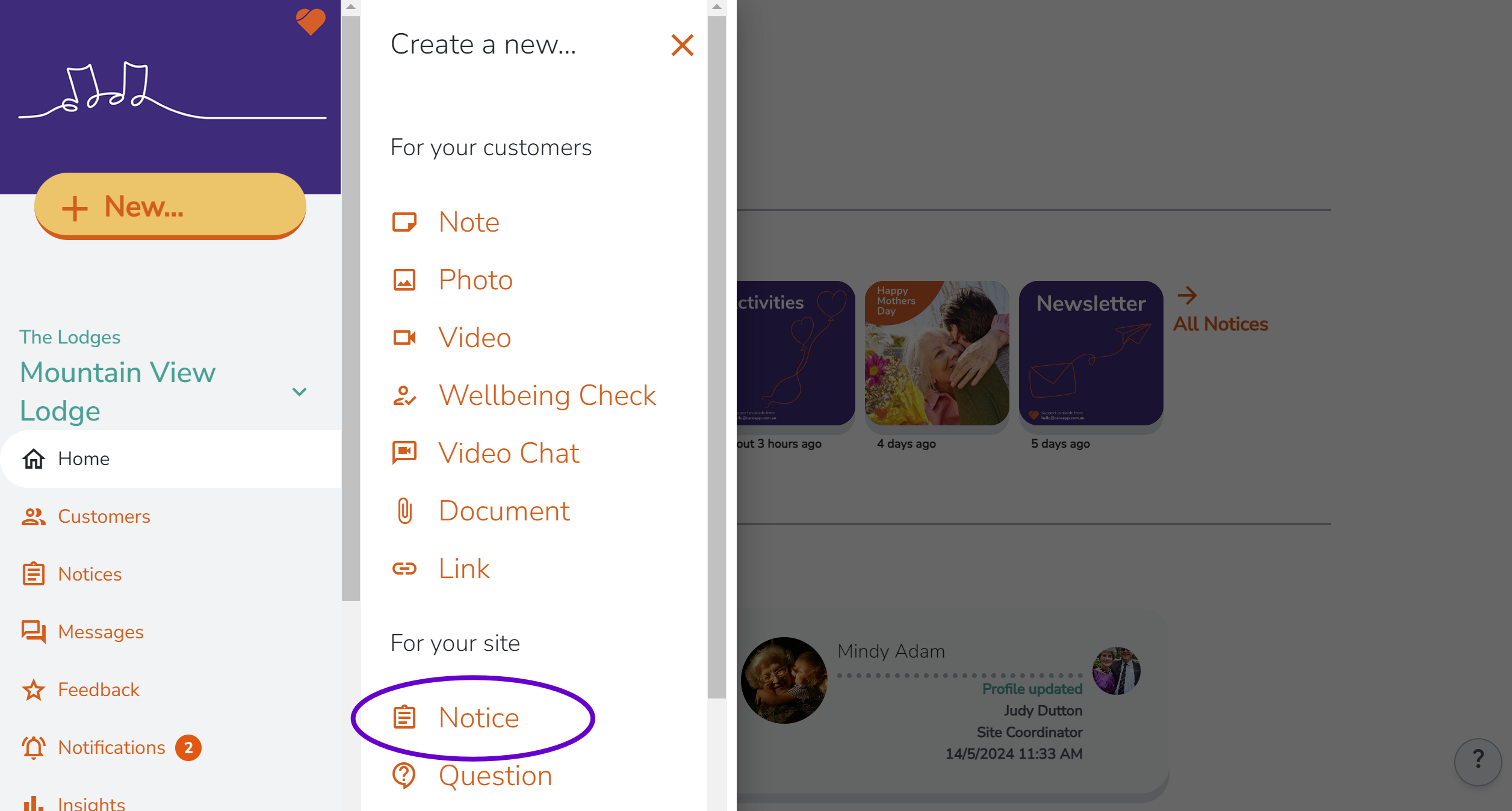
Click the + New button in the main menu.

Select Notice from the dropdown menu.
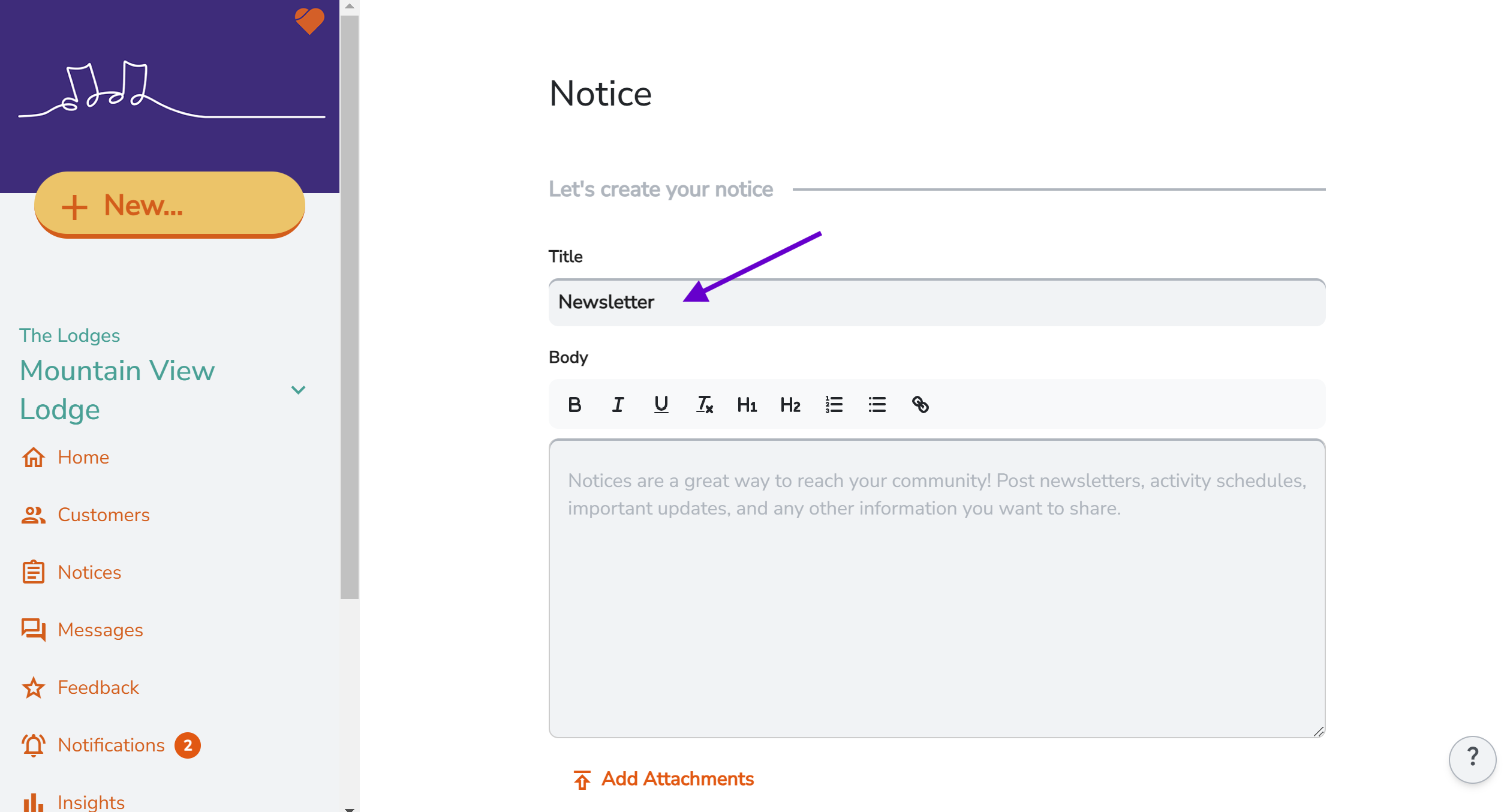
Enter a title for your notice in the Title field.
Add your message details into the Body. Use the toolbar to edit text and create headings.
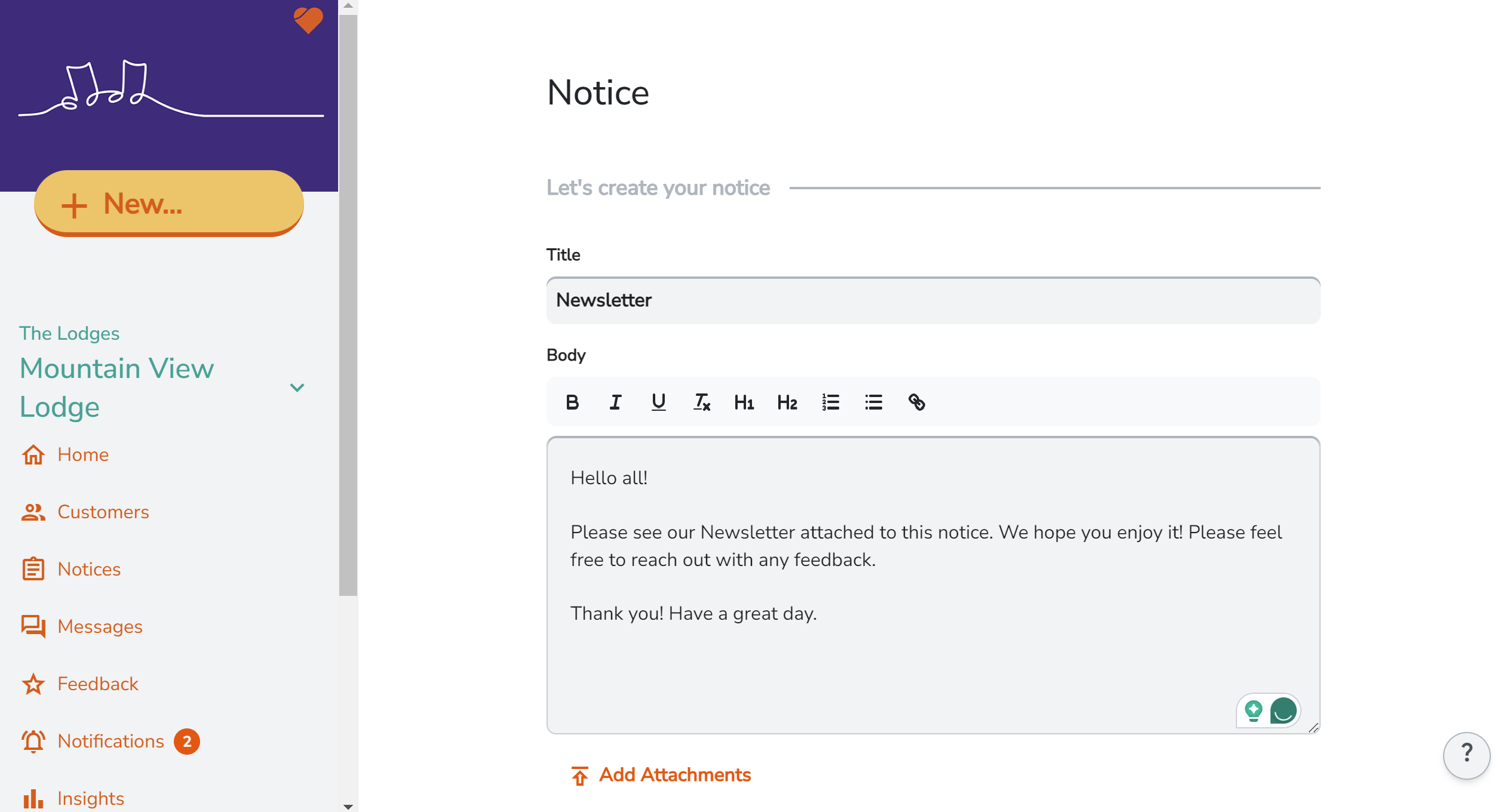
Click Add Attachments to attach supporting files or images.

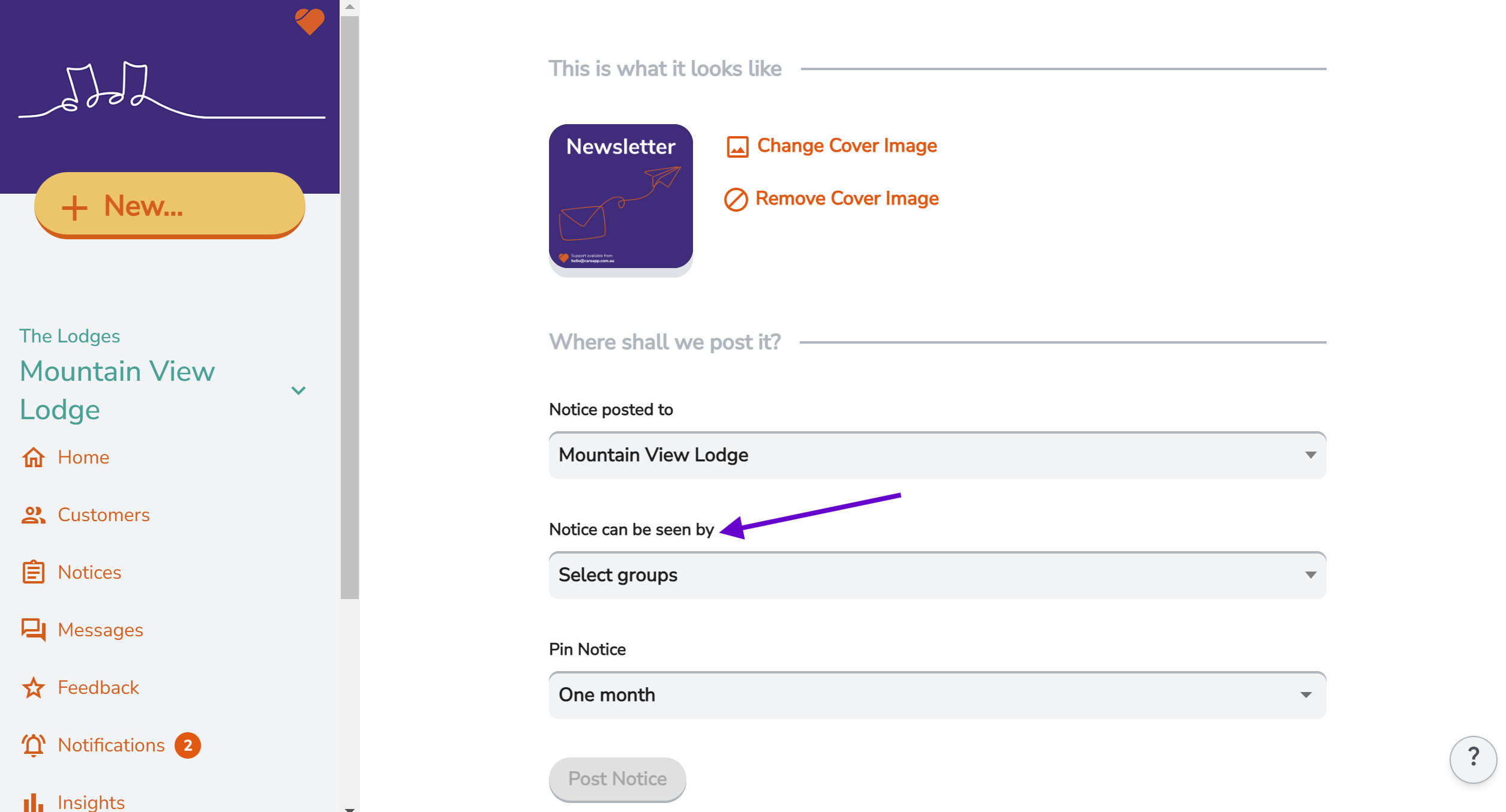
Click Add Cover Image to upload an image that displays first when members view your notice. (You can change or remove this image later).

Select the site where you would like the notice posted.

Select the user roles that are permitted to see this notice.
-
Select the timeframe you would like the notice pinned to the home screen. (Notices remain visible in the Notices tab even after the pinned period ends).

Review your details and click Post Notice.


Mobile & Tablet
Log in to a Provider Administrator or Site Coordinator CareApp account.
Tap the +New button.

Select 'Notice' from the menu.

Create a title for your Notice and add details to the Body.

Tap "Add Attachments" to attach files and images to the Notice.

Change the appearance of your Notice by adding a cover image. Tap "Add a Cover Image" and select an image from the gallery on your device.

-
Select who your Notice is for:
Choose the sites that should see this Notice
Select the user roles to see this Notice
Select how long you would like the notice to be pinned to the Home screen.
Once you are happy with your Notice, tap the send button.

Need to Delete or Edit Your Notice?
You can edit or delete any Notice post on CareApp. Check out our guide here: How to Edit a Notice on CareApp