MX Spanish (Mexico)
US English (US)
ES Spanish

Contact Us

If you still have questions or prefer to get help directly from an agent, please submit a request.
We’ll get back to you as soon as possible.

Please fill out the contact form below and we will reply as soon as possible.

  • Contact Us
English (US)
MX Spanish (Mexico)
US English (US)
ES Spanish
  • Home
  • Care Providers
  • Providers: Using CareApp

Care Provider: Group Posts On CareApp

Use Group Posts to easily share moments with more of your community in one go.

Written by Georgia Radcliffe

Updated at August 5th, 2026

Contact Us

If you still have questions or prefer to get help directly from an agent, please submit a request.
We’ll get back to you as soon as possible.

Please fill out the contact form below and we will reply as soon as possible.

  • Care Providers
    Providers: Getting Started Providers: Building your community Providers: Using CareApp Providers: Insights
  • Family & Friends
    Family: Getting Started Family: Building your community Family: Using CareApp
  • Care Recipients
  • Technical information
  • Resources
  • Community
+ More

đź‘‹ Want to share a photo post with multiple families at once? Create a Group Post!

Group Posts are a wonderful way to share one moment with many families at once

Instead of posting separately for each resident or client, a Group Post lets you tag multiple profiles in one go — so all of their connected families receive it at the same time. One great moment, shared with everyone it belongs to, with half the effort.

They're perfect for:

  • Group activities and outings
  • Events where multiple residents or clients were involved
  • Shared moments you want multiple families to see

How to Create a Group Post

Creating a Group Post is just like creating a normal photo post — with one simple difference: when you get to the step where you tag your customer profiles, tag everyone you'd like to include.

Tip: There are two easy ways to tag multiple profiles:

  • Individually — select each resident or client profile one by one from the customer profile list
  • Using a Customer List — if you have a pre-made Customer List (like Choir Group or West Wing), just select it, and all the profiles in that group are tagged at once. Learn how to create a Customer List

How to Post a Photo

Care Provider: Post a Photo

What does a photo post look like on CareApp?

The most popular post to make on CareApp is the photo post. As the saying goes “A picture is worth 1,000 words”. A photo shared on CareApp with family can really give families peace of mind about their loved one's wellbeing and care.

Who can post a photo?

If you have a Team Member, Site Coordinator, or Provider Administrator account on CareApp you can post a photo for your care recipients.

How do I post a photo?

Please see the tutorial video below for an in-depth guide to creating a photo post or see the step-by-step guide below. Please click on the tab below that aligns with the type of device yo are using CareApp on.

Mobile & Tablet

  1. Tap on the big +New button at the bottom of the screen.
  2. Tap on 'Photo' from the menu.
  3. Tap 'Select people'.
  4. Find the customer you wish to make a photo post for. Search for them by scrolling down the list or searching their name in the 'Filter' search bar.
  5. Select the customer by tapping their name. This will highlight them and add their name to the list at the bottom of the screen. You can select one customer or you can select multiple.
  6. Once you have selected the customer tap 'Done' down the bottom right of the screen.
  7. Now you can choose to take a live photo with the camera on your mobile device by pressing 'Take Photo' or you can upload a photo from the gallery on your device by tapping 'Upload From Gallery'. 
  8. Write a message in the comment box to attach to the photo post.
  9. If you are an Administrator or Coordinator you will have the option to 'Share with Family'. If you are a Team member you will not have this option. Your post will be approved by an Administrator or Coordinator before being shared with family.
  10. Choose a label that best describes what is happening in the photo.
  11. Once you are happy, tap send up in the top right-hand corner of the screen.
This photo post will now be visible at the top of the feed on the home screen and on the customer's profile.


Delete

Web

  1. Click on the big yellow +New button in the left side menu.
  2. Click on 'Photo' from the menu.
  3. Click 'Select people'.
  4. Find the customer you wish to make a photo post for. Search for them by scrolling down the list or searching their name in the 'Filter' search bar.
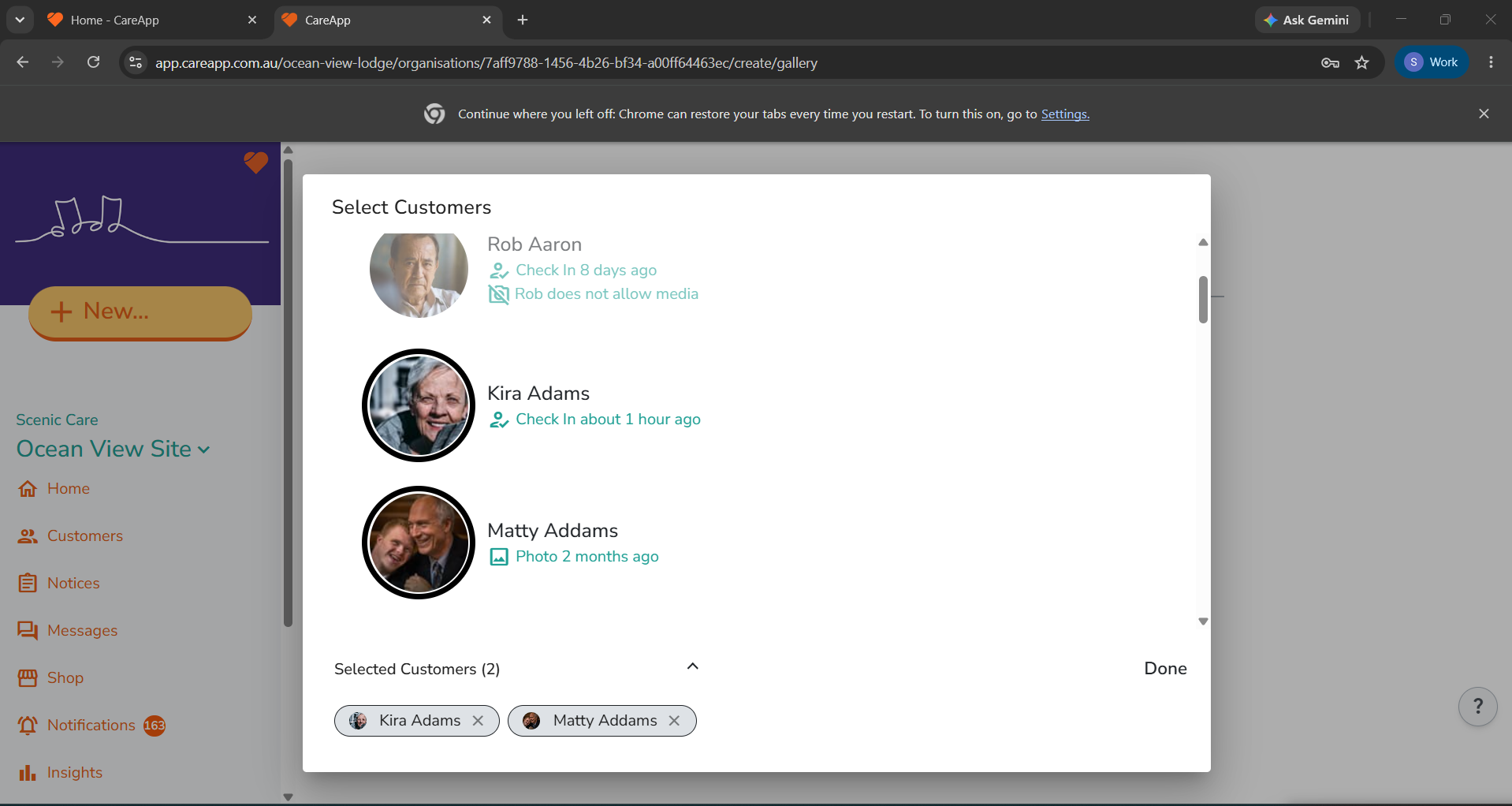
  5. Select the customer by clicking on their name. This will highlight them and add their name to the list at the bottom of the window. You can select one customer or you can select multiple.
  6. Once you have selected the customer tap 'Done' down the bottom right of the window.
  7. You will now be on the create page. To attach a photo to the post click on 'Attach Images'.
  8. Select the photos from your files and click 'Open'.
  9. You will now see the photo attached to your post. A preview of each photo will be shown on the create page.
  10. Write a message in the comment box to attach to the photo post.
  11. If you are an Administrator or Coordinator you will have the option to 'Share with Family'. If you are a Team member you will not have this option. Your post will be approved by an Administrator or Coordinator before being shared with family.
  12. Choose a label that best describes what is happening in the photo.
  13. Once you are happy click 'Publish' at the bottom of the screen.

This photo post will now be visible at the top of the feed on the home screen and on the customer's profile.

Delete


Need help?

Contact us at hello@careapp.com.au or visit our  Help Centre

caregiver community

Was this article helpful?

Yes
No
Give feedback about this article

Related Articles

  • Care Provider: How to Post a Notice
  • Care Provider: Customer Posting on CareApp
  • Care Provider: Share a link to your community using Notice posts
Suite 7
Stone & Chalk
at Lot Fourteen
North Terrace
Adelaide SA 5000
Linkedin Instagram Facebook
  • Join CareApp
  • Nominate your care provider
  • Resources
  • Welcome
  • Meals on Wheels
  • Integrations
Menu
  • Join CareApp
  • Nominate your care provider
  • Resources
  • Welcome
  • Meals on Wheels
  • Integrations
  • Articles
  • Media Assets
  • Testimonials
  • Team
  • Jobs
Menu
  • Articles
  • Media Assets
  • Testimonials
  • Team
  • Jobs
  • Product Updates
  • Status
  • Contact Us
  • Copyright
  • Privacy Policy
  • Terms of Service
Menu
  • Product Updates
  • Status
  • Contact Us
  • Copyright
  • Privacy Policy
  • Terms of Service

Knowledge Base Software powered by Helpjuice

Definition by Author

0
0
Expand