
A photo post is the most common way to share updates on CareApp. Sharing photos with families can be more reassuring of their loved one's wellbeing than a written update.
Administrators, Coordinators and Team Members can all create photo posts.
If your care provider has enabled it, family members can also post photos.
.png)
Mobile
Step-by-Step Instructions
Tap + New at the bottom of the screen.

Select Photo.

Tap Select People and choose the participant. Use the search bar to filter, or select multiple people if needed and tap Done.

Tap Take Photo to use your camera, or Upload from Gallery to choose an existing image.

Add a brief caption in the text box.

If you are an Administrator or Coordinator, choose whether to share the post with family. If you are a Team Member, your post will go to a manager for review before families can see it.
Select the relevant labels for the photo.

Tap Send in the top right corner.
Web
- Click the + New button in the left menu and select Photo.

- Click Select People or Select List and find the customer you'd like to post for.
Scroll through the list or use the Filter search bar. You can tag more than one customer in a single post. To find out more about lists see our guide here How to Create and Manage Customer Lists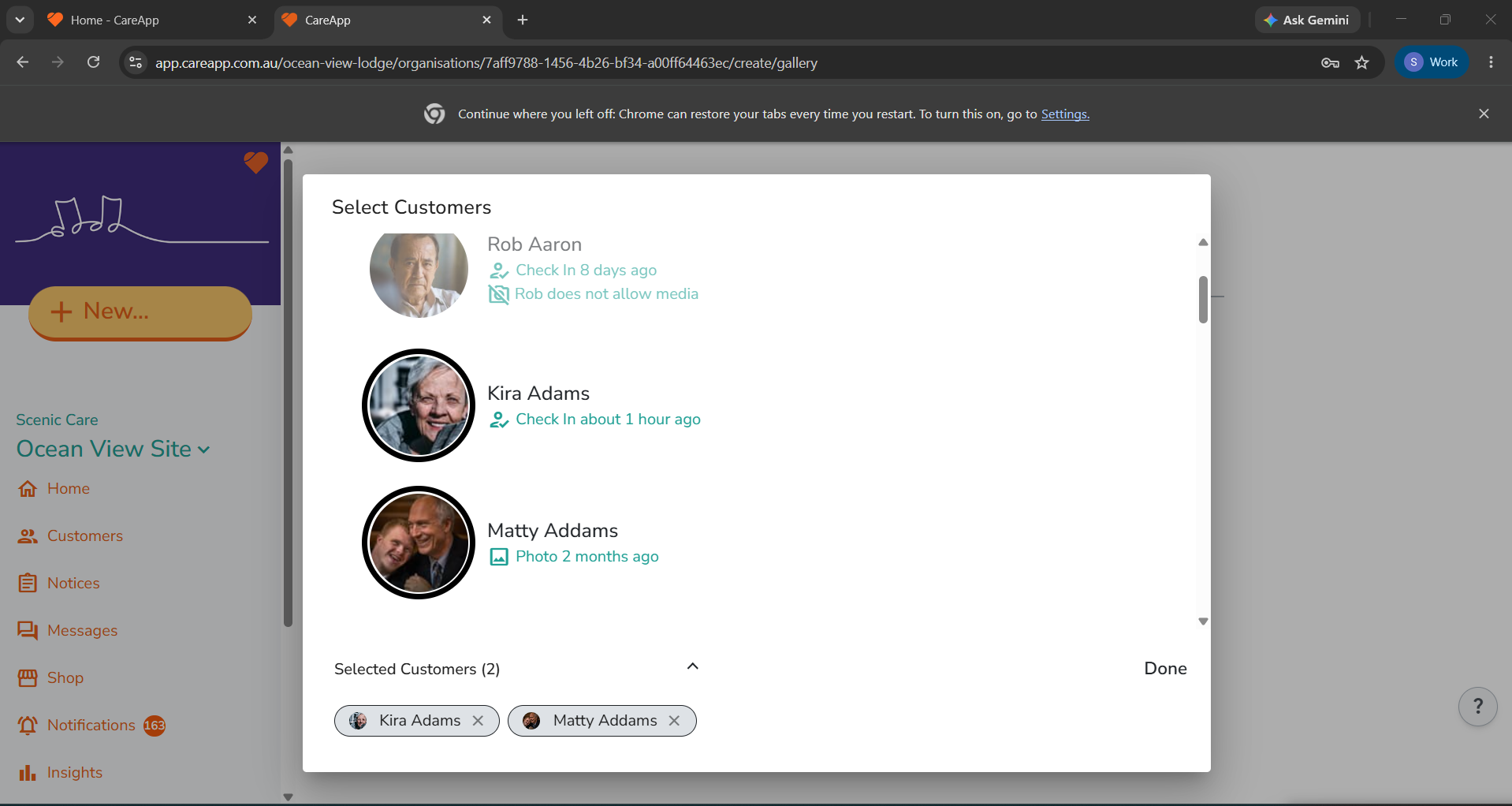
- Once you've selected everyone, click Done.
- Click Attach Images, select your photos from your files and click Open.
A preview of each photo will appear on the create page.
- Write a caption in the comment box.

-
If you're an Administrator or Coordinator, choose whether to Share with Family.
If you're a Team Member, your post will be reviewed and approved before families can see it. - Select a label that best describes what's happening in the photo.

- Click Publish.

Once posted, the photo will be visible to all Administrators, Coordinators and Team Members connected to the participant's profile. If these Photos are shared with family, they will see it as soon as it is published.