
Don’t have a CareApp invitation yet?
Here's how to get one
Family: How do I get an account?
👋 Are you looking to set up a CareApp account?
You're in the right place!
To set up a CareApp account, you need to be invited to join a care provider's community.
There are two easy ways to get an invitation:
Ask your care provider
Be invited by family
1. Ask your care provider
Call or email your provider and let them know you’d like to join CareApp. Be sure to include your name, your loved one’s name, and your email address.
Here’s a handy email template you can copy and send:
DeleteSubject: Request for CareApp invitation
Dear [Care Provider’s Name],
I’m glad to hear that [site/service name] uses CareApp, and I’d love to be added to the community for [resident/client’s name].
Please use this email address [or insert another] for my CareApp account.
Thank you,
[Your name]
2. Be invited by family
If a family member is already connected to CareApp, they can invite additional family members directly from their account. (See our guide on Family inviting Family for step-by-step instructions.)
What to expect
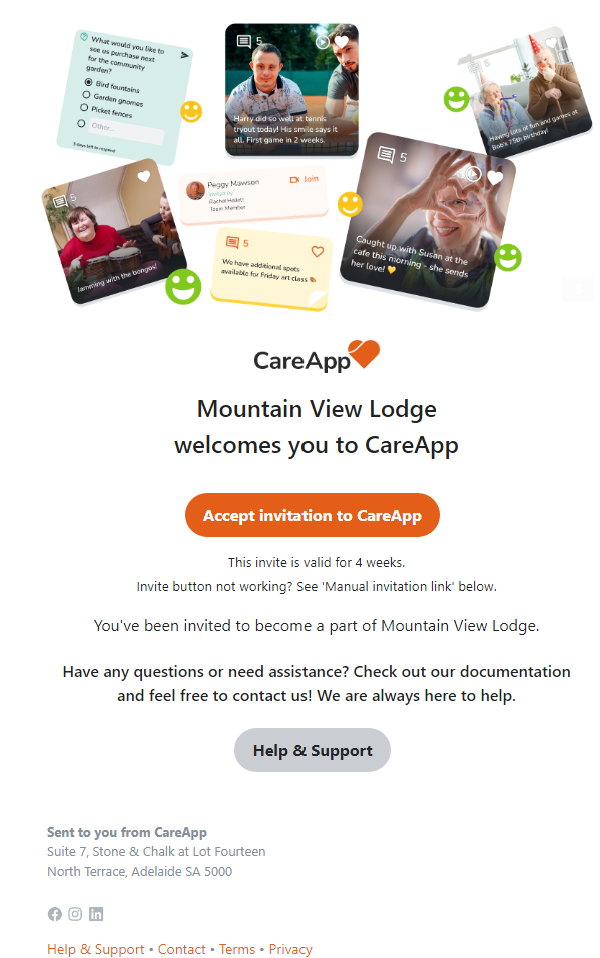
Your invitation will arrive from hello@careapp.com.au with a big orange button that says “Accept Invitation to CareApp.”
Here's what it looks like:
Need help?
Reach out to CareApp customer support to help you get connected at hello@careapp.com.au.
1. Find your invitation
- Check your email (including spam) for an invitation from CareApp hello@careapp.com.au.
2. Accept the Invitation
- Click the “Accept invitation to CareApp” button in the email.

3. Create or connect your account
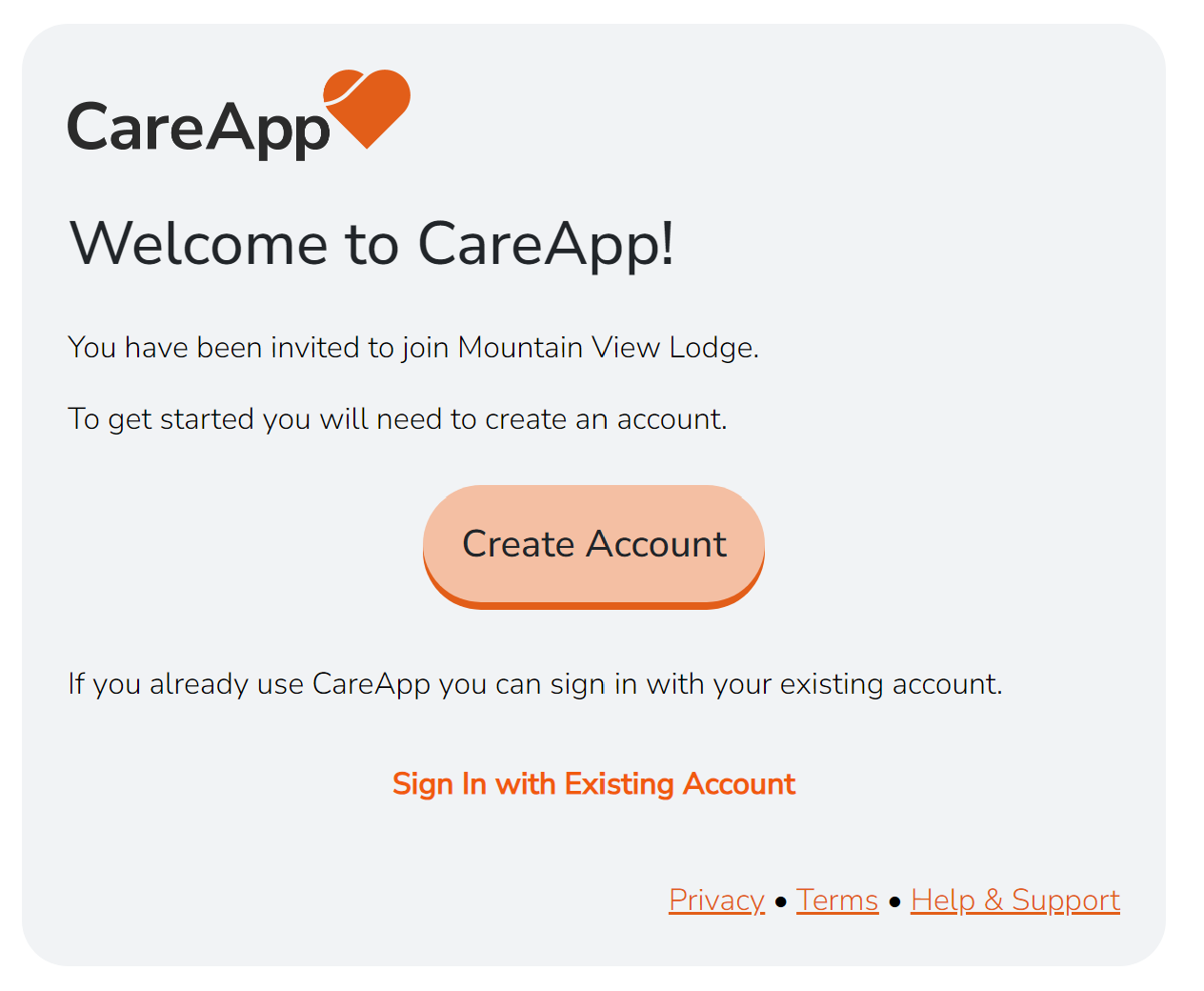
- New to CareApp? Click “Create Account”.
- Already have an account? Click “Sign In With Existing Account” to connect this invitation.
4. Set your password
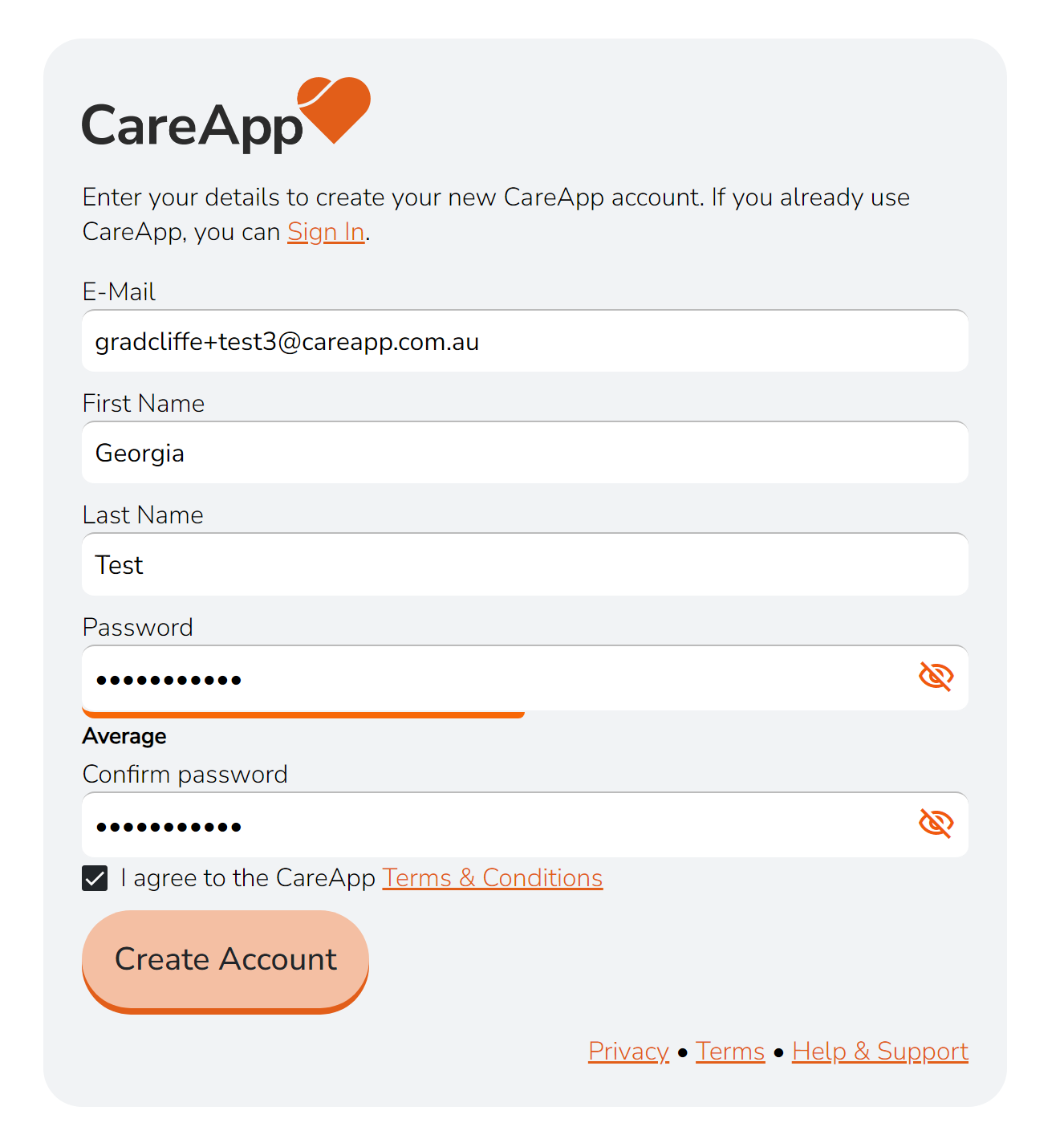
- Enter your First and Last Name and create a password.
- Type your password twice to confirm.
5. Complete signup
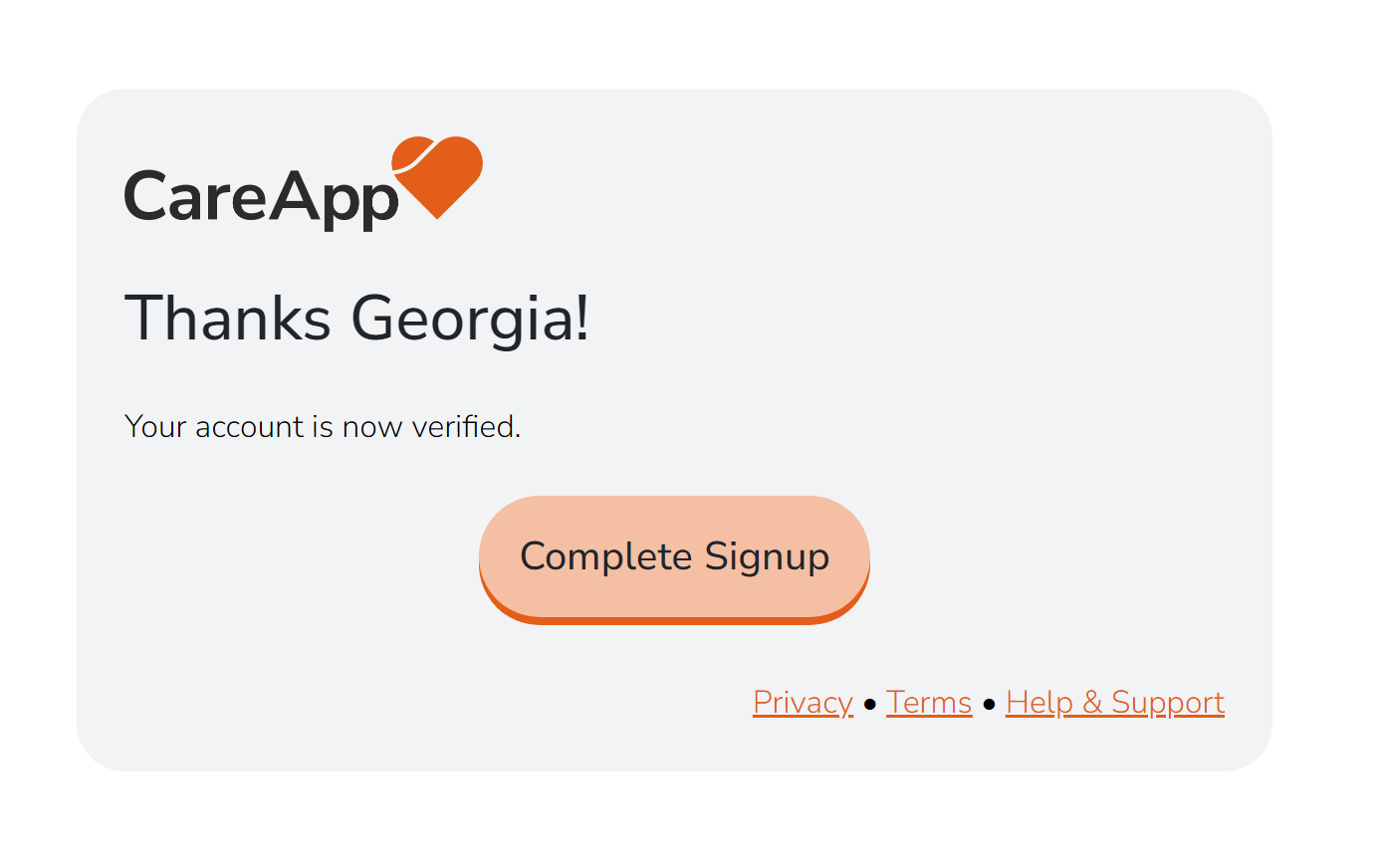
- Click “Complete Signup” to activate your account.
✅ You’re done!
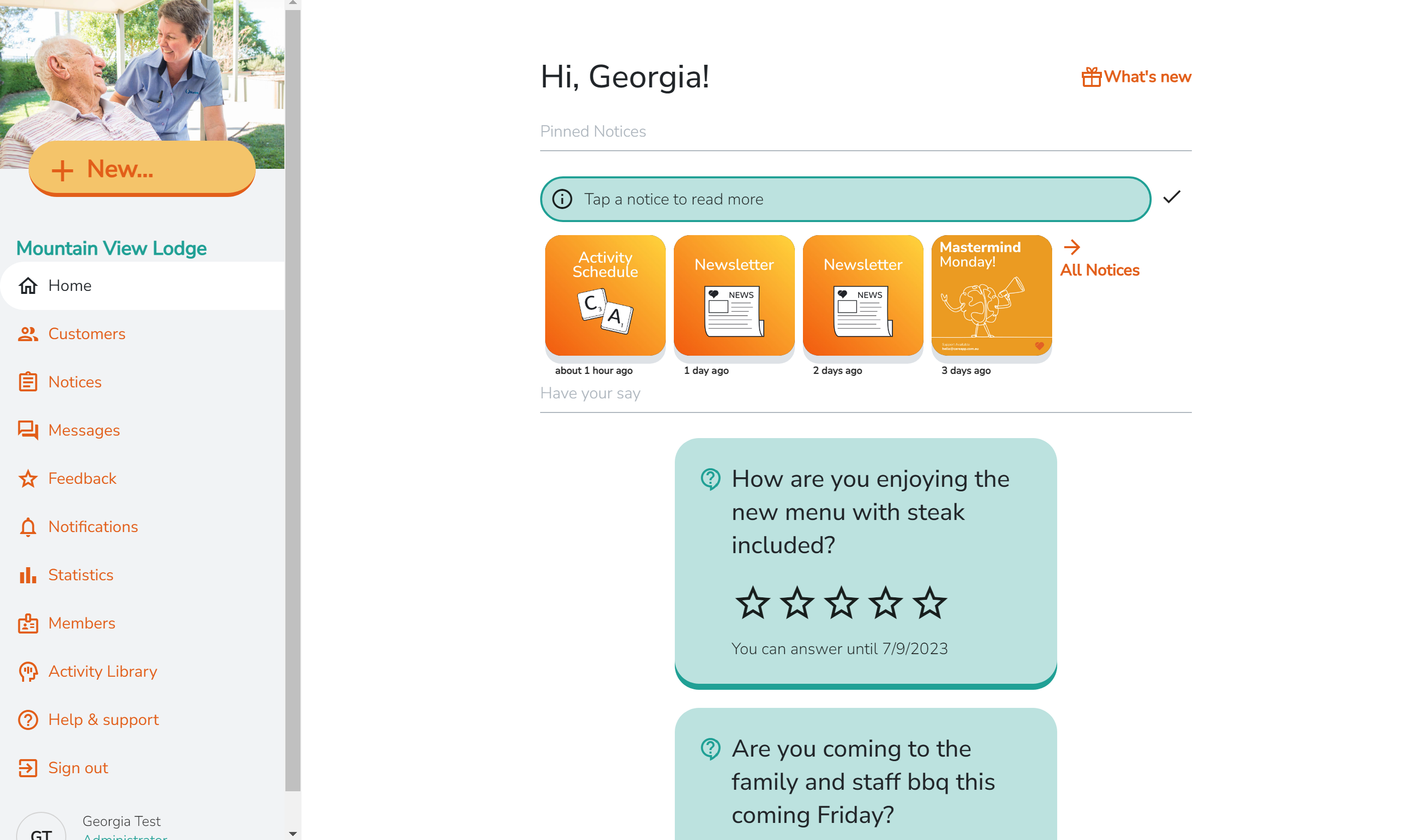
- Scroll through your home feed to see posts.
- Explore the tabs to discover more features.
📹 Tip: Watch the short video below for a step-by-step guide and how to download the app.